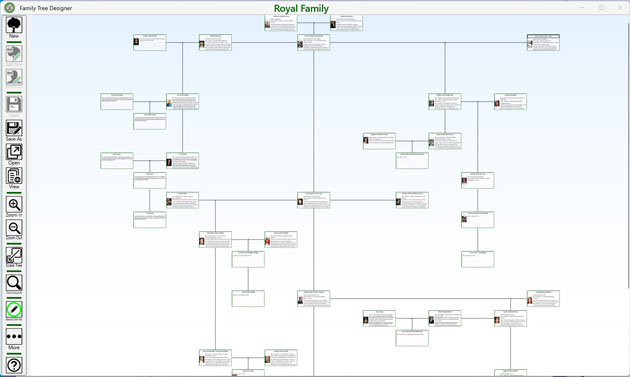
Family Tree built by this app can be exported and imported as a file so user can invite other family members to add information, expanding the branches with each birth or wedding. These files have proprietary file format to ensure security information while transferring it to other family member.
 - editing is enabled and
  - editing is disabled.
Modify tree
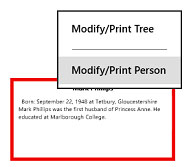
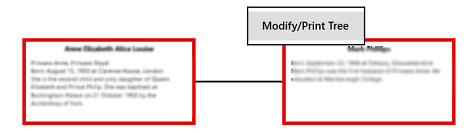
 button on the left side of app window. You can edit or print out tree when two persons are selected using corresponding menu item or
 button on the left side of app window.

Leftmost “Print Tree”
button brings another screen dedicated to printing the whole Family Tree out. Branches button
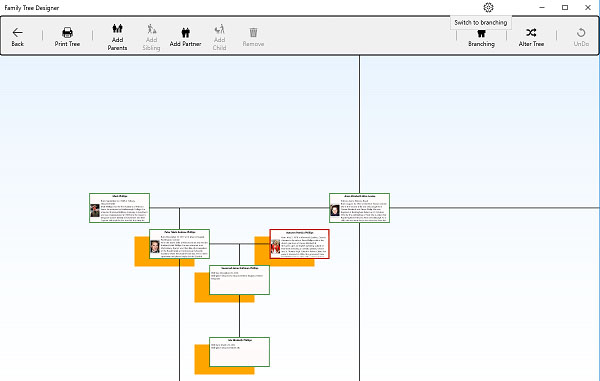
 brings another screen dedicated to creating and modification branches in the Family Tree. Alter Tree button
 brings another screen dedicated to the Family Tree layout modification. Undo button
 revokes last Family Tree modification.
Modify individual's information
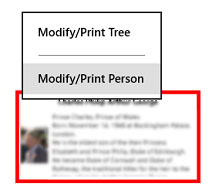
 or right mouse click or press and hold on touch screen on this selected person with all the
controls needed including undo button allowing user to go up to three steps back in person information
modification.
or right mouse click or press and hold on touch screen on this selected person with all the
controls needed including undo button allowing user to go up to three steps back in person information
modification.
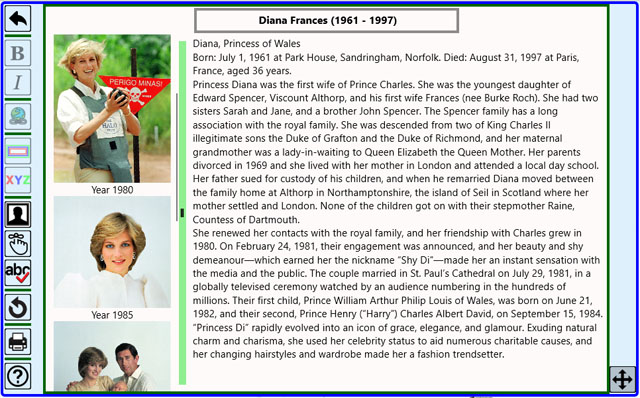
 and
and

Hyperlink also can be applied to the selected biography segment using
 button, app doesn't test the validity of the entered web address but “http:” or “https:” prefix is required. Hyperlink cannot
be overwritten, it should be removed, first, to remove existing hyperlink select the corresponding biography segment and enter
empty hyperlink.
button, app doesn't test the validity of the entered web address but “http:” or “https:” prefix is required. Hyperlink cannot
be overwritten, it should be removed, first, to remove existing hyperlink select the corresponding biography segment and enter
empty hyperlink.
Adding, replacing and removing photo also available. Optimal image size for photo is 1024 x 768 pixels. You open photos editing dialog through
 button.
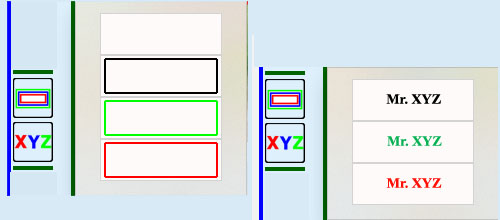
 opens list box with different frames you can select as a frame around person name while
click on
opens list box with different frames you can select as a frame around person name while
click on  opens list box with different colors you can select for the person name.
These two buttons become enabled when any portion of the person name is selected; color applies to the whole person name regardless of selection.
opens list box with different colors you can select for the person name.
These two buttons become enabled when any portion of the person name is selected; color applies to the whole person name regardless of selection.
Top app bar will also be dismissed after about 15 seconds of user inactivity.
Save, Open Delete tree
 to save tree with current name and “Save As Tree” button
 to save current Family Tree as a new one or to replace already existing.
Please note: saving tree doesn’t create file you can share with other people – instead please use exporting to share!
 to open one of the already existing Family Tree.
Family Tree Designer also opens and modifies family trees created by any of the this App mobile companions – Windows Phone “Slim Family Tree Maker.10”, app for Android and iOS, these trees have some specifics and always marked by the icon
 in front of tree name.
Please note: to open tree created by others and shared with you tree should be imported first!
To make a new Family Tree just press corresponding button, newly created Family Tree has unique random name; please note that current app version supports up to 32 Family Trees, only.
“More” button
 shows the controls to delete tree - you can delete any existing Family Tree from the app repository except currently open one.
Import, Export tree
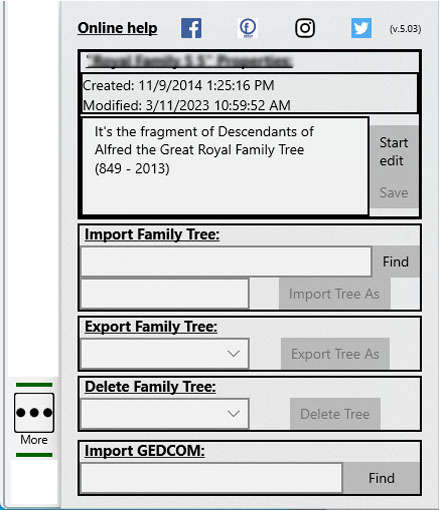 opens dialog with all the controls needed to import and export trees. App is exporting Family Trees which you already
saved through “Save” or “Save As” buttons.
opens dialog with all the controls needed to import and export trees. App is exporting Family Trees which you already
saved through “Save” or “Save As” buttons.
In order for Family Tree to be accessible by this App mobile companion – Windows Phone “Slim Family Tree Maker” App, Tree needs to be exported to the Microsoft cloud storage OneDrive (https://onedrive.live.com/about/en-us/).
To ensure Family Tree information privacy app is using proprietary imported file format, such a file can be read by the Family Tree Designer, only!
There are two files extensions used by Family Tree Designer and its mobile companion: “.ftf” and “.ftm”. Family tree files created by latest versions of the App mobile companion “Slim Family Tree Maker.10” have “.ftm” extension.
Please note: app will not automatically open successfully imported Family Tree file, but will add it to the app repository instead, so you can work on one Family Tree while importing another one simultaneously.
While importing Tree please be aware that current app version supports up to thirty two Family Trees.
“More” button also shows all the controls to import previously exported Family Tree file, delete any existing Family Tree from the app repository except currently open, modify current Family Tree properties and import genealogical information existing as GEDCOM files.
Branch out tree
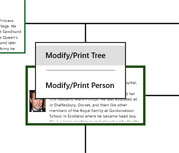 or clicking right mouse or press and hold to invoke popup menu and select “Modify/Print Tree” menu item.
If two persons are selected, branching begins from these persons child, if any.
or clicking right mouse or press and hold to invoke popup menu and select “Modify/Print Tree” menu item.
If two persons are selected, branching begins from these persons child, if any.

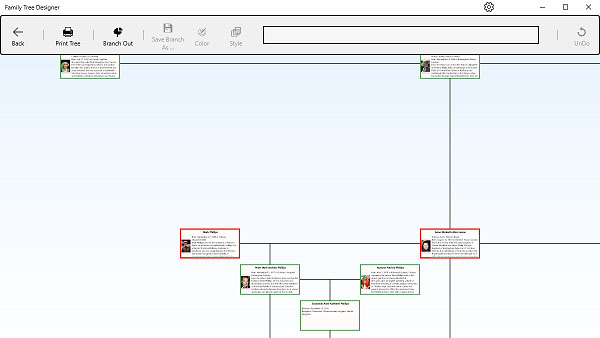
Please note: while branching out App doesn’t modify existing tree.
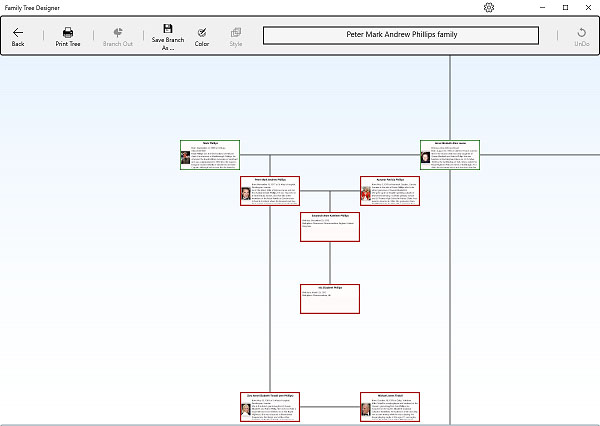
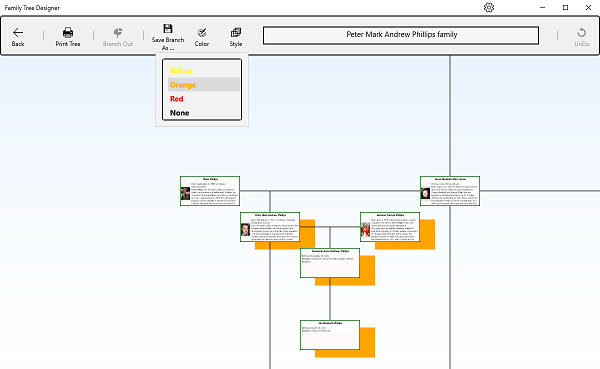
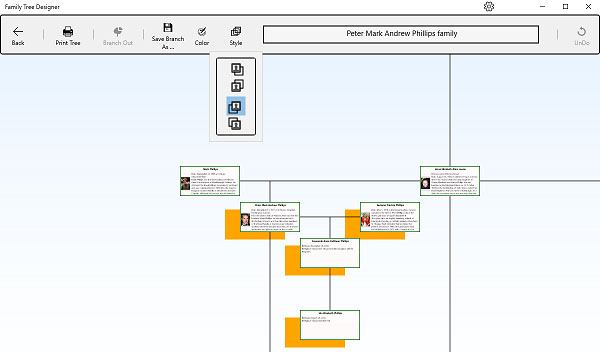
At this moment “Save Branch As …” and “Color” buttons becomes enabled.
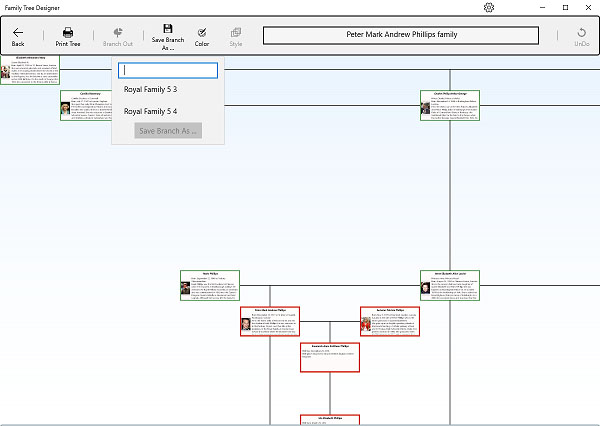
Opening branch is identical to opening any tree in the App.
Alter tree
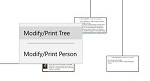
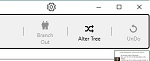
To begin, you have to select one or two persons whose you want to move using double click or double tap. Then invoke popup menu using right mouse click or press and hold on touch screen and choose "Modify/Print Tree" menu item which, in turn, opens top app bar. Locate and select “Alter Tree” button on the right side of the top bar:

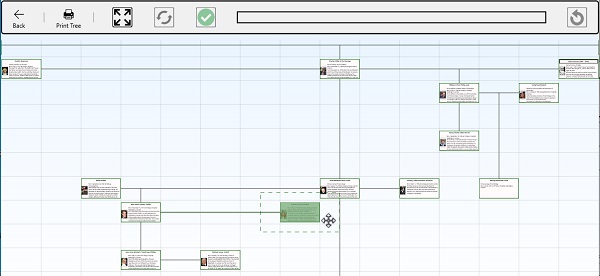
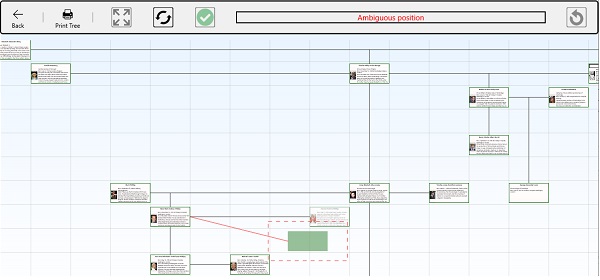
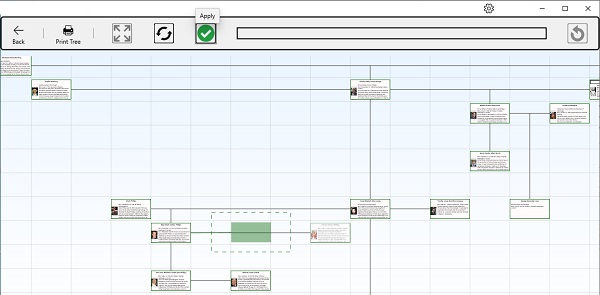
Before tree modification applied it can be reset using “Reset” button.
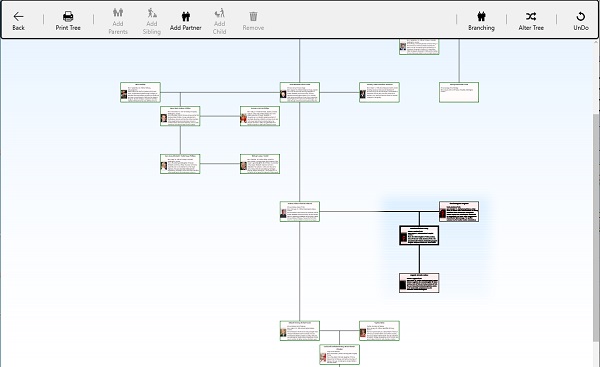
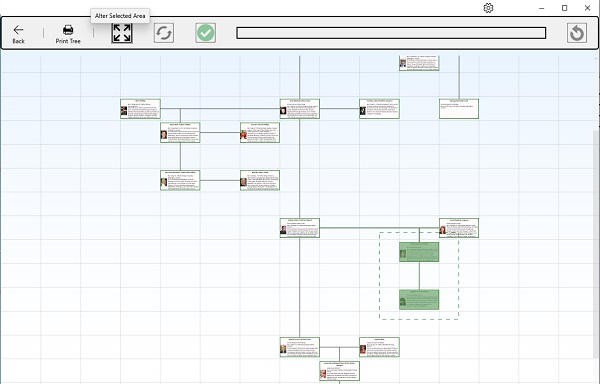
App suggests you person's selection, to customize this selection "Alter Selected Area" button on the right side of the top bar should be clicked:
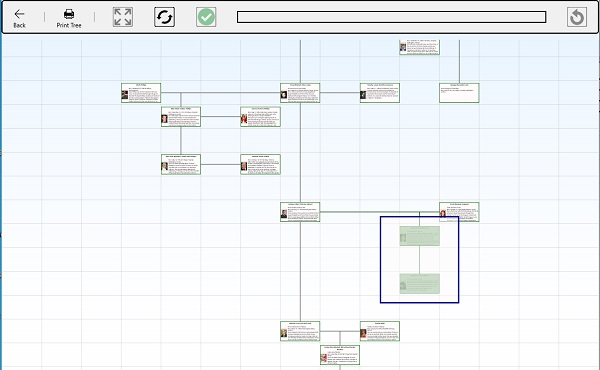
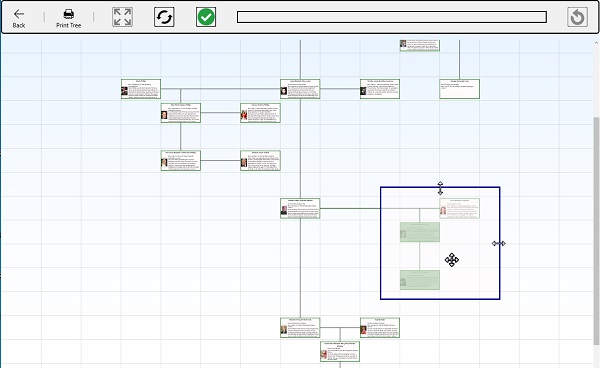
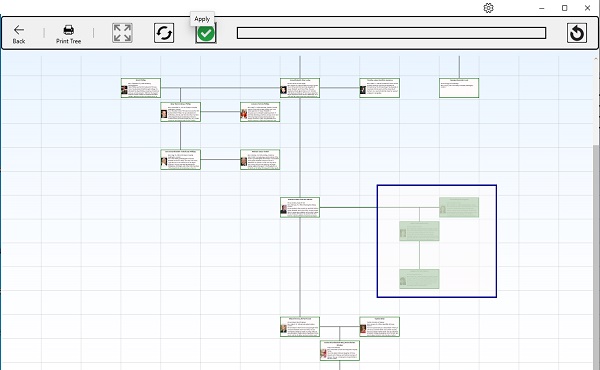
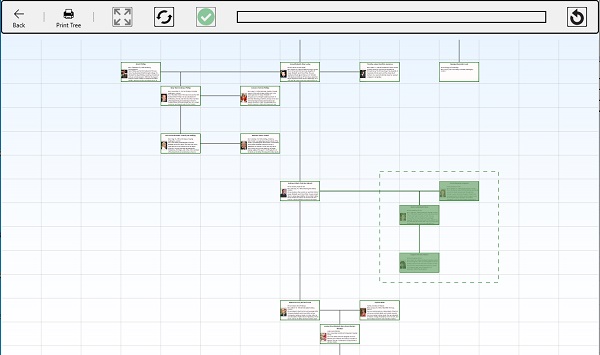
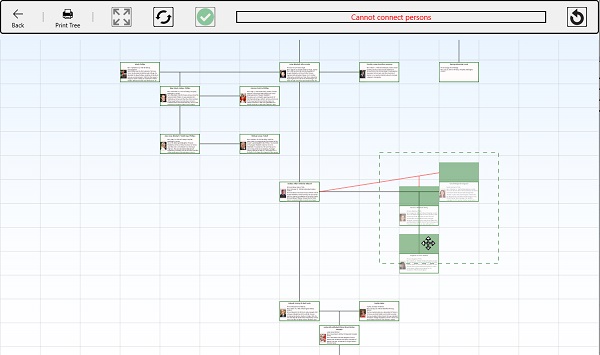
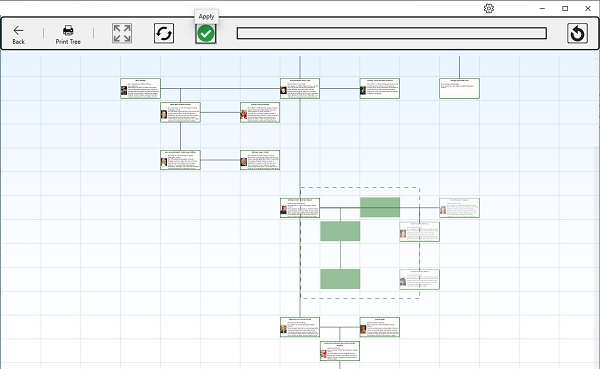
Right mouse click or press and hold on touch screen on any free of people templates Family Tree space dismisses top app bar and terminates tree altering.
Scale tree
 “Scale Up”
and
“Scale Up”
and  "Scale Down" buttons.

While scaled tree does not lose any functionality – it can be branched, altered, zoomed in and out, printed etc.
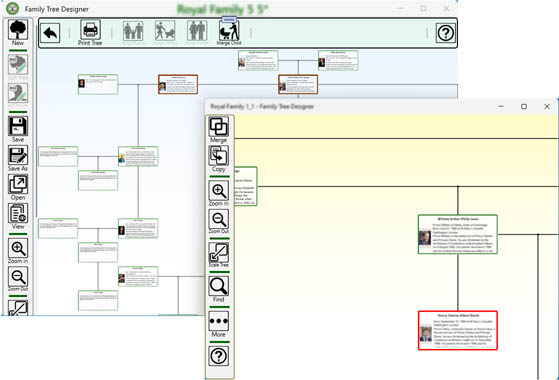
Merge individual
Copy individual
Print individual's information
In order to print individual’ information out Family Tree Designer app is using Windows built-in printing functionality.The way printing is invoked depends on the currently enabled or disabled editing mode user selects through the app Settings.
First of all, person's editining dialog must be opened using right mouse click on selected person or
button on the left.
To continue, click on Print button
 and
select what do you want to print out - “Selected person” or "All in this tree”.
and
select what do you want to print out - “Selected person” or "All in this tree”.
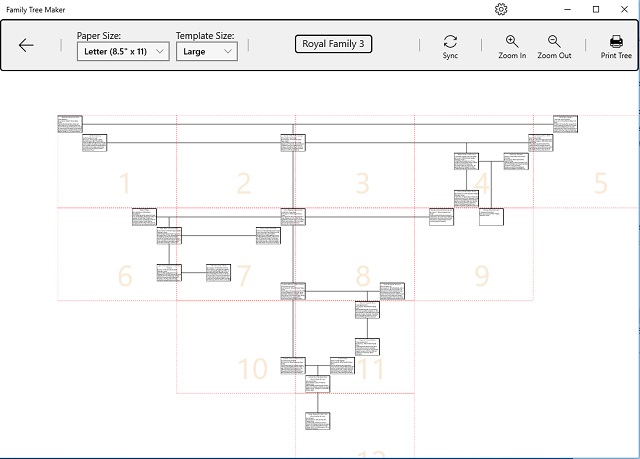
Print tree
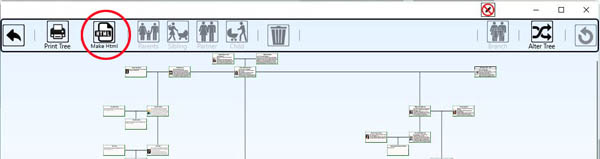
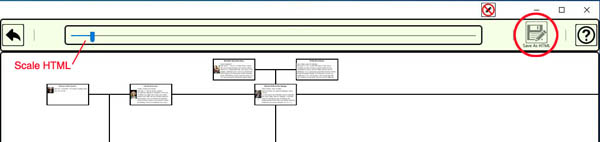
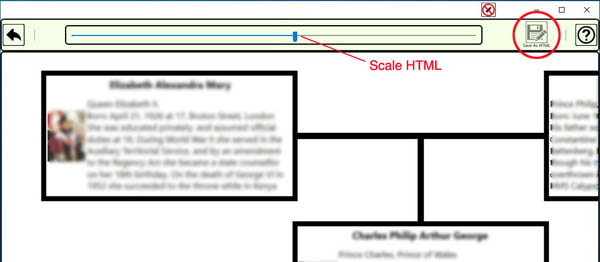
Save tree as HTML

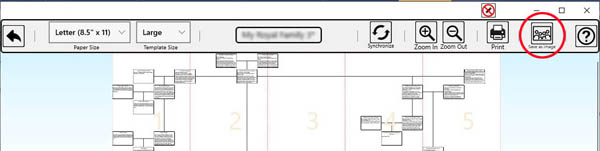
Save tree as Image
View tree
 button to view.
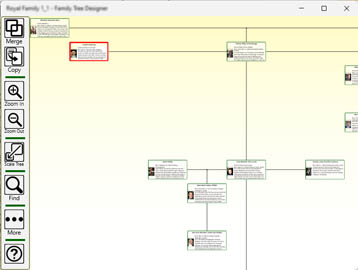
Zoom In and Zoom Out buttons work as single click as well as press-and-hold buttons. Please note, zooming can be also controlled by keystrokes and mouse wheel.
While zooming in or out and having one person selected app is trying to keep this person at the center of the screen.
Also, while zooming in or out app is trying to maintain human’ information text font size to be easy to read.
Spell check
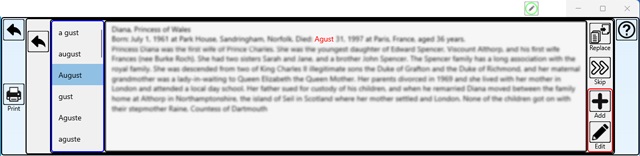
To run spell check you have to open top app bar dedicated to editing person’s information how it’s described in “Modify individual's information” and to click on “Spellcheck”
 button.
App has custom dictionary – “Add” and “Edit” buttons on the right inside red outline. Use “Add” button to include misspelled word in user’s custom dictionary, use “Edit” to open this dictionary to modify it.
Find or search
Right mouse click or press and hold on touch screen on any free of people templates Family Tree space invokes bottom application bar with “Find/Search”
 button
on the left, click on this button will open dedicated top application bar.
button
on the left, click on this button will open dedicated top application bar.
To find or search, just start typing in person information you know and app will try to build the list of suggestions for you on-the-fly, including photo if available.
Finding and searching are case insensitive and conducted among all the Family Trees available. Each suggestion consists of person information following by the Tree name in parentheses and the words found in person’s information in case of corresponding search mode.
While trying to find person by name app is using exact match of the person’s name, on the other hand, searching for person or information app is using fuzzy search for text that matches a term closely instead of exactly what helps you to find relevant results even when the search terms are misspelled or entering partial text to search.
Please note that searching for text in person’s information minimum 3 characters of text are needed.

Import GEDCOM
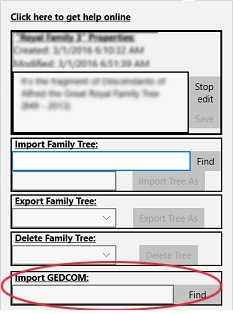
According to the GEDCOM specification file should have “.ged” extension.
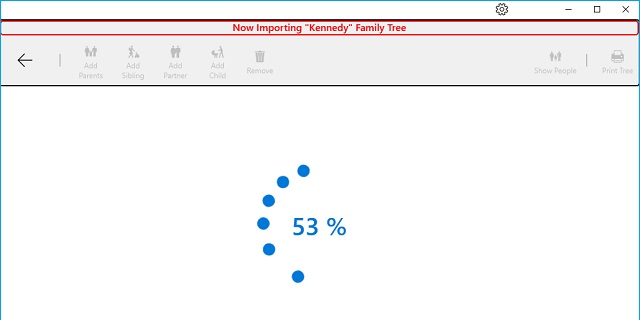
Our App concatenates information from GEDCOM related fields like Citation, Source etc. in one paragraph separating those fields by semicolon as is, without any editing, e.g. any special html specific characters are not removed.
Also, currently, images from GEDCOM files are not imported, yet.
Our App has certain limitations on GEDCOM tree it can handle; currently imported family tree should have less than 4096 individuals in it. Our App presents the family tree in a form of grid where amount of rows or columns cannot exceed 1024.
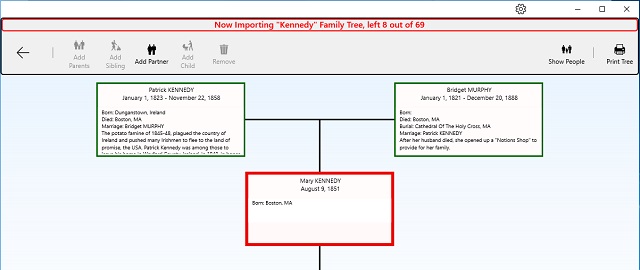
This tree can be modified exactly like it’s described in “Modify tree” section.
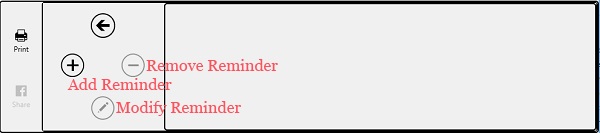
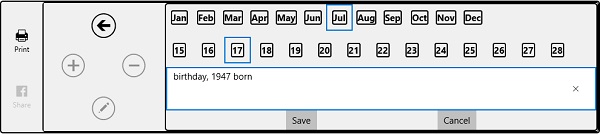
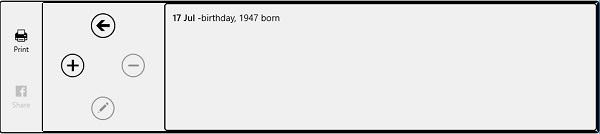
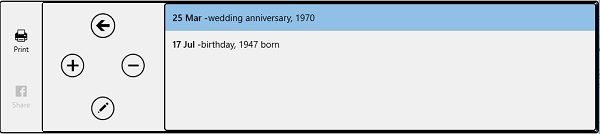
Reminders
and click on the “Remind”  button.
Go Mobile
-
Windows 10 phones users can find such a mobile companion
Slim Family Tree Designerin Windows App Store Users of the Smart phones powered by Android OS can find such a mobile companion
Family Tree Designerin Google Play Store Users of the Apple smart phones and tablets can find such a mobile companion
Family Tree Designerin Apple App Store
Keystrokes
| Ctrl+S or Alt+S | Saves currently open Family Tree, equivalent to pressing “Save Tree” button on the bottom application bar. | |
| Alt+C | Toggles bottom application bar visibility. | |
| Alt+P | Prints out selected individual, if any, or tree. | |
| Alt+T | If editing is enabled toggles visibility of the top application bar dedicated to Family Tree modification, equivalent to selecting "Modify Tree" popup menu item. | |
| Alt+I | If editing is enabled toggles visibility of the top application bar dedicated to Person information modification, equivalent to selecting "Modify/Print Person" popup menu item. | |
| Alt+F | Toggles visibility of the top application bar dedicated to searching for person, equivalent to pressing “Find Person” button on the bottom application bar. | |
| Alt+Add | Executes zoom in, equivalent to pressing “Zoom In” button on the bottom application bar. | |
| Alt+Subtract | Executes zoom out, equivalent to pressing “Zoom Out” button on the bottom application bar. | |
| Ctrl+Mouse Wheel | Executes zooming, equivalent to pressing “Zoom In” or “Zoom Out” buttons on the bottom application bar. | |
| Escape | Hides all currently opened application bars. |
Q&A
|
Q: What is the difference between Family Tree Maker.10 and Family Tree Designer, are
they compatible?
A: Starting from version 4.4.5 released in July 2017, Family Tree Maker.10 was renamed to Family Tree Designer. We believe such a name much better reflects our app unique functionalities and puts our app aside of family trees software crowd. There's absolutely no difference between these two apps except the name! Q: What is the difference between Family Tree Designer and its predecessor app Family Tree Designer.8, are they compatible? A: Family Tree Designer in opposite to its predecessor is built on the latest software technology targeting broad range of Windows 10 devices. Both apps are fully compatible. Q: Is it OK to have both apps, Family Tree Designer and its predecessor app Family Tree Designer.8, installed on the same computer? A: Yes. They will not share trees unless you export tree from one app in order to import this tree to another app. Also, please export trees if you decide to uninstall any of apps. Q: Is there an option to share Family Tree to any social site? A: Currently, Family Tree Designer has limited access to the Facebook. Q: Is there an option to share Family Tree as an image file? A: Yes, just follow the steps to print Family Tree and use “Save as image” button instead of actual printing. Q: How to share Family Tree with other people? A: This app as well as any other family tree related application is using proprietary file format, because of that person, you want to share with, should have Family Tree Designer installed too, after that you can share Family Tree files using app’ importing and exporting functionalities. Q: Is there a way to print out all the individuals in the tree at once? A: Yes, just select any individual to modify, click on “Print”, choose printer and “All in this tree” printing option. Q: Is there a way to import Family Tree created by some other software? A: Yes, please try "Import GEDCOM" functionality. Q: Is current version the final one? A: No, we will continue fixing issues and improving our app. |
|
|
Q: Is there a way to keep track of progress-to-date on the Tree I’m working on?
A: Yes, each Tree has accompanied information: date Tree was created and date Tree was last modified. Other than that, there is a text notes user can write and save. There are two buttons on the right of the notes to prevent these notes from accidental modification. Please use “More” button to get there: |
 Fig.69 |
|
Q: Is there a way to terminate long-running procedure? A: Yes, Entering time consuming procedure Family Tree Designer displays windows progress ring indicator on the center of the screen, right mouse click or press and hold on touch screen on this indicator brings the dialog to terminate currently running procedure. |
|
|
Q: What are restrictions on Family Tree? A: Currently, amount of partners person may have is limited to eight (8) and amount of children is limited to sixteen (16), Family Tree size cannot exceed one thousand twenty four (1024) individuals. GEDCOM importing has a few additional restrictions. |
|
|
Q: Can this app to import and open family trees created by this App mobile companion – Windows Phone “Slim Family Tree Designer”? A: Definitely yes. These trees have some specifics and always marked by the  icon in front of tree names.
|
|