
 Android Family Tree Designer™
|
Android Family Tree Designer is the Android Phone and Tablet including Amazon Fire and
Kindle Fire mobile companion for
"Windows App Store Family Tree Designer"
built for Windows 10 devices. Android Family Tree Designer is a very simple app allowing user to view and modify existing Family Trees created by Family Tree Designer and to build new Family Tree fully compatible with Windows App Store Family Tree Designer. In order for Android Family Tree Designer to use cloud storage "Microsoft OneDrive", aka SkyDrive to access Family Trees corresponding Microsoft’ “OneDrive” app must be installed. OneDrive, in turn, requires Microsoft account. Only four types of relationship between people may be used to compose any family tree, they are partners, parents, children and siblings, all other information can be part of individual’s biography. |
How to begin
This app has three main screens: screen to view and edit tree, screen to save and open tree
and screen to import and export tree. Right-most button  on the bottom of each screen switches screens. Each screen has different set of buttons:
|

|
| Screen to view and edit tree has zoom in and zoom out buttons, button to modify person’ information and button to modify tree itself. |

|
| Screen to save and open tree has the button to create new family tree, button to save current tree in app repository on your phone and button to open one of the already existing in app repository tree. |

|
| Screen to import and export tree has two corresponding buttons. Exporting family tree converts it to the file readable by other our Family Tree Designers listed here. You import or export family tree from or to the external storage like SD card or USB flash or your phone “Documents” folder. You can also use Microsoft’ “OneDrive” if you have account and “OneDrive” app installed. |
|
Every newly created Family Tree has only one person in it with symbolic name “Mr.XYZ” and a brief explanation of how to modify Family Tree. All other new person' templates created consist of person name and person biography both filled with meaningless but unique text. |
|
Sometimes user sees disabled button with red cross on it, like this one:  . Long-press (extended touch) on such a button
shows the reason for that if app setting “Need disabled controls explanation” is ON. . Long-press (extended touch) on such a button
shows the reason for that if app setting “Need disabled controls explanation” is ON.
|
Select individual
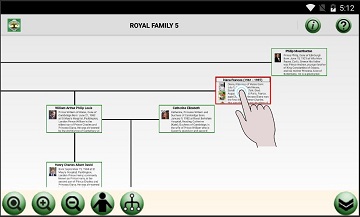
| To modify tree or individual information one or two persons must be selected. It’s done by double-tap on individual template. Double-tap on already selected template deselects it. |
|
|
While zooming tree in or out single selected individual template is always in the center of the screen. |
Create, modify tree
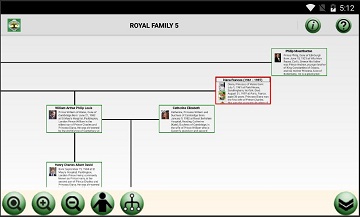
To modify Family Tree one or two persons only must be selected, selected person
template has red border; to select person please double tap on the person template till its border becomes red.
Upon selection two buttons become enabled, person information  and tree modifications:
  . To modify tree itself please tap on
button. . To modify tree itself please tap on
button.
|
|
You will see the set of buttons:  to add parents,
  to add sibling,
  to add partner,
  to add child and
  to remove person: to remove person:
|

|
| Some of the buttons will be disabled following obvious logic, like parents can be added if and only if one person was selected; child can be added if and only if two persons were selected etc. Only one person at-a-time can be removed. |
Modify person information
|
|
To modify person information one person only must be selected and after
button is tapped new screen will be presented to user.
|
|
|
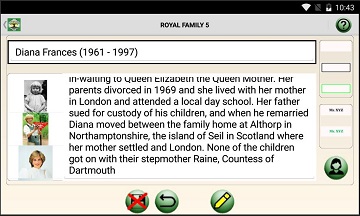
User can modify both fields of person information: name and biography. There are two list boxes on the right of the
person’ template – list with borders and list with text colors, both allow person name decoration.
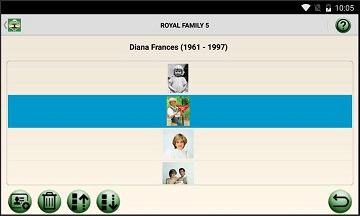
User can also modify the list of images accompanied parson’ information. There are up to 8 images can be attached to the person’ information as an illustration; tapped button  will present
next screen - images editor. will present
next screen - images editor.
|
|
| Here user can add, remove and rearrange images-illustration person’ information and history. |
Save, open, delete tree
| Navigate to the screen having following set of buttons on the bottom: |
|
|
|
Tap  button to
create new tree. button to
create new tree.
Tap  button to
save Family Tree in app repository. button to
save Family Tree in app repository.
Tap  button to
open the tree from app repository. button to
open the tree from app repository.
Tap button to
delete tree from app repository.
|
Full screen view
|
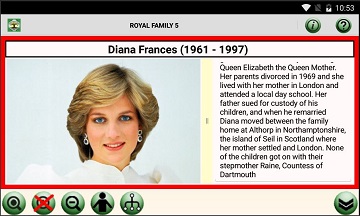
User undoubtedly finds full screen view mode as a very attractive feature!
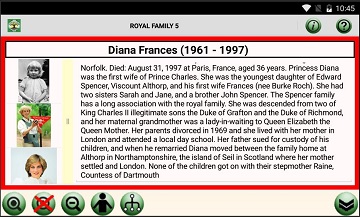
Long-press (extended touch) on any person’ template switches this template in full screen view mode, either landscape or portrait: |
|
|
Move yellow vertical bar to resize images from the list: |
|
|
To exit full screen view mode you have to tap on either  or
or  button. button.
|
Import, export tree
|
To share family tree with others it must be exported - converted to the single file readable
by all our mobile apps and by Family Tree Designer desktop app from the Windows Store.
Android Family Tree Designer allows you to share family tree with others by exporting tree to your device storage, including SD Card, folders accessible by other mobile apps, to Microsoft OneDrive, Google Drive or just sending it by email as an attachment. Android Family Tree Designer allows you to import trees from your device storage, including SD Card, or created or modified by others by importing it from Microsoft OneDrive, Google Drive or just received by email from your device Downloads folder. |
|
Navigate to the screen having following set of buttons on the bottom: |
|
|
|
Tap  button to import tree. button to import tree.
Tap  button to export tree. button to export tree.
|
Make notes
|
There is the button  with information symbol in it on the top of the most app screens: with information symbol in it on the top of the most app screens:
|

|
|
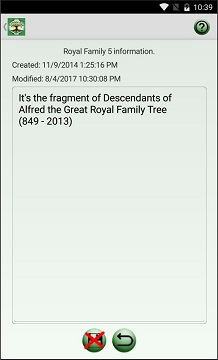
Tap on this button opens tree information screen: |
| While app keeps track of tree’ created and last modified times, user can put some notes related to this tree. |
Change settings
This app has local help user can read any time tapping button  on the top: on the top:
|

|
|
Almost every help screen has  button - symbol settings on the top: button - symbol settings on the top:
|

|
|
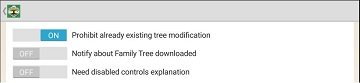
Tap on this button opens app settings: |
|
| If 'Prohibit already existing tree modification' is ON app prevents already existing tree accidental modification or/and deleting while new tree can be created. |
| If 'Notify about Family Tree downloaded' is ON app will notify you when new family tree file is downloaded. |
| Disabled control button has a red cross on it; if 'Need disabled controls explanation' is ON long press on red crossed button will display a short message for a few seconds explaining the reason why button is disabled. Tap this message to hide it before it's gone automatically. |
Privacy policy
Family Tree Designer neither collect any kind of user information nor share any kind of user information with third parties. This privacy policy is subject to change without notice and was last updated on April 24, 2023.If you have any questions feel free to contact Family Tree Designer developers directly at FamilyTree@victel.cc.
© https://www.victel.cc, All Right Reserved.